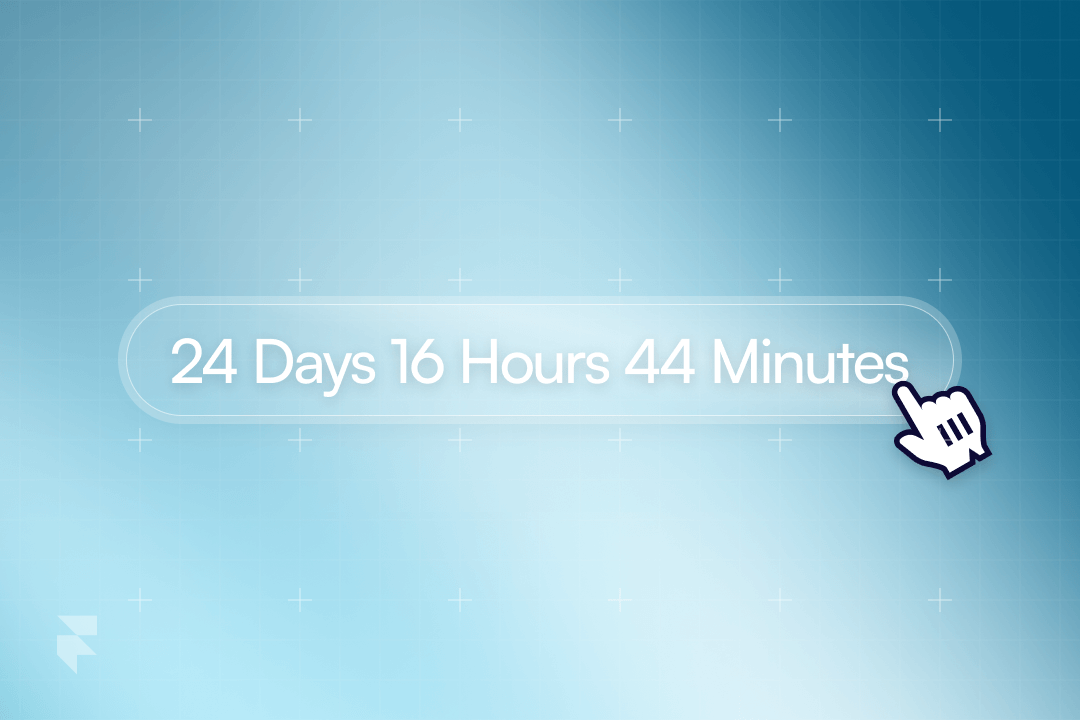
Add a countdown timer to Framer and display something when the date is reached ✨
Looking to create a live countdown on your Framer site? Want full control over its functionality and even the ability to trigger an action when the countdown ends? This short article will show you how to easily implement a dynamic countdown timer that delivers a visually appealing and interactive experience for your users.
How does it work?
1. Add the component to your project
To get started, simply add the countdown component to your project.
Alternatively, you can remix our project and copy the component from the remix.
2. Customise the styles and layout
Create a countdown that perfectly matches your project’s aesthetic and functionality. With Framer’s intuitive UI, you can fully customize every aspect of the countdown. Adjust the layout, colors, typography, and more to align with your design vision.
3. Display something when the date is reached
Once the specified date is reached, you can replace the countdown element with something new. For example, display a message like “Our Sale is Over”.
Publish and enjoy
That’s it, just publish the project and your countdown will work perfectly on every load. Remember to adjust any settings or configurations as needed to match your specific countdown requirements. Enjoy the flexibility and control provided by this countdown component in your Framer project!
Did you find this helpful? 💕
Your support means the world to us! In just 10 seconds, you can make a big difference:
Keeping up with the ever-changing landscape of UI design is critical.
Staying ahead of the curve is essential for creating engaging and user-friendly websites. Gathering inspiration to assist in your creation process can be time consuming, that’s why we’ve curated a list of the top 20 UI inspiration websites we’ve loved in 2023.
These websites have proved to be a treasure trove of innovative design ideas and trends. Whether you’re seeking a fresh perspective or simply a does of motivation, these platforms are sure to spark your creativity and elevate your UI design skills.
For the full details, keep scrolling – but here they are, in no particular order!
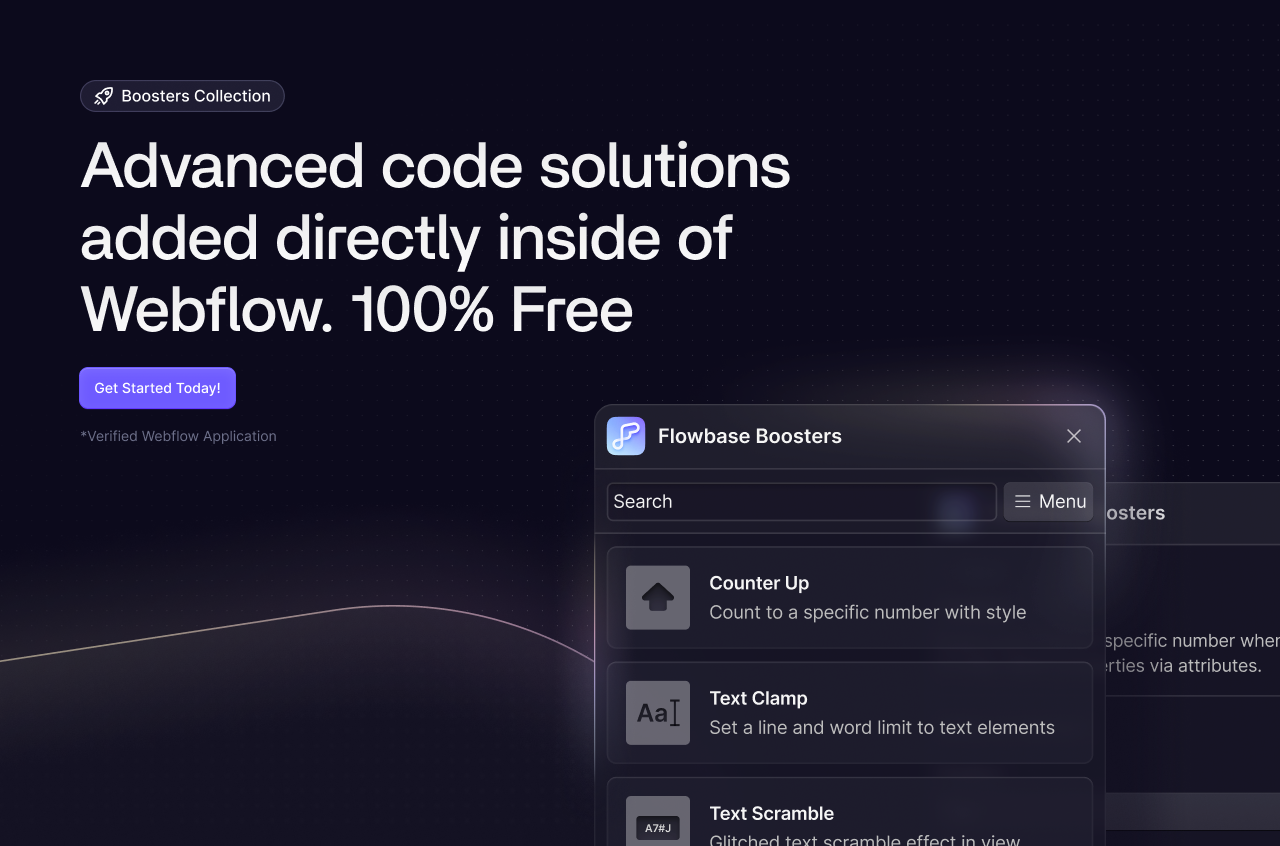
Our mission is to help you build better, faster and with that in mind, we have created our newest product, now available in Webflow Apps – The Boosters App.
Take your Webflow projects to the next level with a collection of powerful boosters that can be added to your projects in seconds.
What are Boosters?
Boosters are simple scripts and attributes that add advanced functionality to your Webflow projects. As a Webflow developer, you know that achieving specific functionality often requires a touch of custom code.
The Boosters App provides a free library of ready-to-use boosters, making it easy to seamlessly enhance your projects with just a few clicks.
Popular Boosters
Here’s just a few examples of currently available Boosters. We recommend checking out our app to see all the latest Boosters.
Count-Up Booster
The Count-Up Booster can be used to easily count up to a target number when the element is in view. It will smoothly animate numbers from 0 to your desired value and is commonly used to display statistics. This booster is super user-friendly and will add some interest to your website.
Text Scramble Booster
The Text Scramble Booster can be used to add a scrambled text effect when a user hovers on or views a specific text element. Add some interest to your page with this cool visual effect.
Tooltips Booster
The Tooltips Booster helps provide interactive, additional content and guidance to your users. This booster will display informative tooltips when hovering or clicking on certain elements. You can control their position, theme, animation style and more.
Cookies Booster
The Cookies Booster controls the display of elements like pop-ups or announcements. Using browser cookies, you can control the display state of an element for a specific period of time. That way, when your user clicks close on a pop-up, you can decide how long it should be until they see that pop-up again.
Countdown Booster
The Countdown Booster is perfect for building anticipation. Add a sense of urgency and excitement by displaying a countdown in weeks, hours, minutes and seconds to events, launches, promotions etc. Set the countdown in your time, and have it formatted globally with UTC (Universal Time Coordinated).
App Performance & Updates
The Boosters App uses Webflow’s secure API, and any boosters can be removed just as easily as they are added from right inside the app interface. All boosters are served via a global CDN for fast, reliable and secure delivery. Your scripts will always be supported and you can choose to update to newer versions easily via the app. That means you can trust your functions to always work, regardless of updates or improvements from our team.
We recommend using the Boosters App to automatically add your scripts – this way you can seamlessly add scripts, update them and remove them all from within the app’s UI. However, we know some of you would prefer to add your scripts manually and control every step of the process internally.
If you’d prefer to add your scripts manually, you can do this via the app by choosing the “Skip and Add Manually” function. Please keep in mind that by manually adding your scripts, you won’t receive the full in app support you can expect when adding your scripts automatically.
What Boosters would you like to see?
We are so excited to bring you this new product. Our team are actively working on adding new boosters to the app. We’d love to hear what sort of boosters you want, so please get in touch to request new boosters (you can do this directly inside the app via the Suggestions section or reach out to us on the usual channels).
We hope you enjoy the app and would love to see how you’ve boosted your sites!
Did you find this helpful? 💕
Your support means the world to us! In just 10 seconds, you can make a big difference:
In late 2024, Webflow announced an exciting development: an acquisition and an official integration with GSAP (GreenSock Animation Platform), the wildly popular animation library trusted by developers worldwide. While we eagerly anticipate how this will revolutionize interactions within the Webflow Designer, we didn’t want to wait to bring the magic of GSAP to the Webflow community.
That’s why we’ve teamed up with the brilliant minds at Codrops to bring Webflow users a huge collection of pre-made GSAP animations. From text hovers and reveals to stunning highlights, these animations are designed to elevate your projects and can be added instantly to any project with a single click.
Our GSAP-powered animations have been simplified for Webflow users. There’s no need to write a single line of code or deal with complex technical setups. Using our Booster app, you can apply these animations with ease by simply adding attributes to your text elements. That means you can customise the colors, speed and more directly through attributes. You can also add the scripts and attributes manually and without our app if that’s more your style – all the information to do this is provided in the article below.
Lean and Efficient Code with Smart Tracking
The Booster app takes care of everything for you. With a single installation of the GSAP script, the app dynamically loads only the dependencies you need for your specific effect. This means your Webflow project stays lean, avoiding unnecessary bloat and ensuring fast loading times.
1. GSAP Text Highlight Effects
Our GSAP text highlight effects offer truly unique and beautiful effects for any text element in Webflow. These animations work best on headlines or attached to text spans within your text content. Some effects require additional attributes to customize features such as text color or background color. Refer to the details below for the specific attributes needed for different effects.
Install GSAP Highlight Scripts:
To get started, include the following scripts in the <head> of your Webflow custom code settings. Be sure to include only one version of the script, even if you use multiple effects
The core attributes listed below should be applied to all effects to initialize them and select the effect type. Optional attributes can control specific features of the animation, and if they aren’t added we will revert to the defaults. Additional effect-specific attributes are detailed below the effects.
Required:
fb-text-highlight = trueDefault: true
fb-text-highlight-type = 1-12Default: 1
Optional:
fb-text-highlight-offset = 0-100 **Default: 0
Controls the position on the page where the effect triggers.
fb-text-highlight-speed = 0.5-2Default: 1
Adjusts animation duration: lower values are faster, higher values are smoother.
Optional class to adjust the position and size of the background element
Effect #8: Falling Text
Each word falls into view for a playful animation style. Preview Effect
fb-text-highlight = true
fb-text-highlight-type = 8
fb-text-highlight-color-end = color (rgb | hex | name)Default: #49af42
Effect #9: Disappearing Text Replacement
Replaces original text with a highlighted version while fading the original characters into a smooth smoke-like effect. Preview Effect
fb-text-highlight = true
fb-text-highlight-type = 9
fb-text-highlight-color-end = color (rgb | hex | name)Default: #a86088
Effect #10: Sparkle Animation
Applies a random sparkle or glow to individual characters of the text. Perfect for playful or celebratory designs. You can specify multiple colors separated by commas. Preview Effect
Creates duplicates of the text and animates them into view with a staggered fade effect. Great for creating a layered, dynamic look. Preview Effect
fb-text-highlight = true
fb-text-highlight-type = 11
fb-text-highlight-duplicates = number > 1Default: 8
fb-text-highlight-color-end = color (rgb | hex | name)Default: #fff
Effect #12: Space-Age Line Highlights
Adds animated lines around the text, combined with a blur effect through the text for a futuristic aesthetic. Ideal for tech-inspired designs or eye-catching headers. Preview Effect
Optional class to adjust the position and size of the background element
2. GSAP Text Hover Animations
Our GSAP text hover animations offer engaging and unique hover effects for any text element in Webflow. These animations work best on CTA elements like buttons or nav links. Some effects require additional attributes to customize features such as text color or background color. Refer to the details below for the specific attributes needed for different effects.
Install GSAP Text Hover Scripts:
To get started, include the following scripts in the <head> of your Webflow custom code settings. Be sure to include only one version of the script, even if you use multiple effects
The core attributes listed below should be applied to all effects to initialize them and select the effect type. Optional attributes can control specific features of the animation, and if they aren’t added we will revert to the defaults. Additional effect-specific attributes are detailed below the effects.
Required:
fb-text-hover = trueDefault: true
fb-text-hover-type = 1-5Default: 1
Optional:
fb-text-hover-speed = 0.5-2Default: 1
Adjusts animation duration: lower values are faster, higher values are smoother.
Effect #1: Text Stagger Flow
This effect staggers your text for a smooth and seamless hover transition. Preview Effect
fb-text-hover-color-end = color (rgb | hex | name)Default: currentColor
Effect #2: Typewriter Blink Cursor
Add a stylish typewriter animation with a customisable trailing blinking cursor. Preview Effect
fb-text-hover-class = class-name
Optional class that can be applied to the background element
fb-text-hover-cursor-color = color (rgb | hex | name)Default: #FFFFF
Optional class to adjust the color of the blinking cursor
Effect #3: Typewriter Background Fill
Adds a background fill effect along with a text scramble. Preview Effect
Optional class that can be applied to the background element
fb-text-hover-bg-color = color (rgb | hex | name)Default: #FFFFF
Optional class to adjust the background color on hover
fb-text-hover-inset = px valueDefault: -2px -8px
Optional class to adjust the position and size of the background element
3. GSAP Text Reveal Effects
Our GSAP text reveal effects offer advanced animation effects for any text element in Webflow. These effects are perfect for bodies of text, and provide a subtle fade and reveal as they are scrolled into view.
GSAP Reveal Scripts:
To get started, include the following scripts in the <head> of your Webflow custom code settings. Be sure to include only one version of the script, even if you use multiple effects
The core attributes listed below should be appled to all effects to initialize them and select the effect type. Optional attributes can control specific features of the animation, and if they aren’t added we will revert to the defaults. Additional effect-specific attributes are detailed below the effects.
Required:
fb-text-reveal = trueDefault: true
fb-text-reveal-type = 1-5Default: 1
Optional:
fb-text-reveal-offset = 0-100Default: 0
Controls the position on the page where the effect triggers.
Effect #1: Blur Reveal
Adds a blur reveal effect across the whole text as its scrolled in view. Preview Effect
fb-text-reveal = true
fb-text-reveal-type = 1
Effect #2: Soft Blur Reveal
Adds a blur to the whole text, and reveals it as its scrolled in view. Preview Effect
fb-text-reveal = true
fb-text-reveal-type = 2
Effect #3: Line Divider Reveal
Draws a soft line for each line of text and then reveals it as its scrolled in view . Preview Effect
fb-text-reveal = true
fb-text-reveal-type = 3
Effect #4: Slanted Blur Reveal
Applies a slanted text effect and a blur to reveal it as its scrolled in view. Preview Effect
fb-text-reveal = true
fb-text-reveal-type = 4
Effect #5: Color Text Reveal
Apply a custom color over the base color when the element scrolls into view. Preview Effect
fb-text-reveal = true
fb-text-highlight-type = 5
fb-text-reveal-color-end = color (rgb | hex | name)Default: currentColor
Did you find this helpful? 💕
Your support means the world to us! In just 10 seconds, you can make a big difference:
Discover a curated list of beautiful fonts, guaranteed to suit your next project.
With the endless amount of free fonts available, choosing the right one for your website can be a daunting task. Not all fonts are created equal and choosing a free, yet high quality font can be overwhelming.
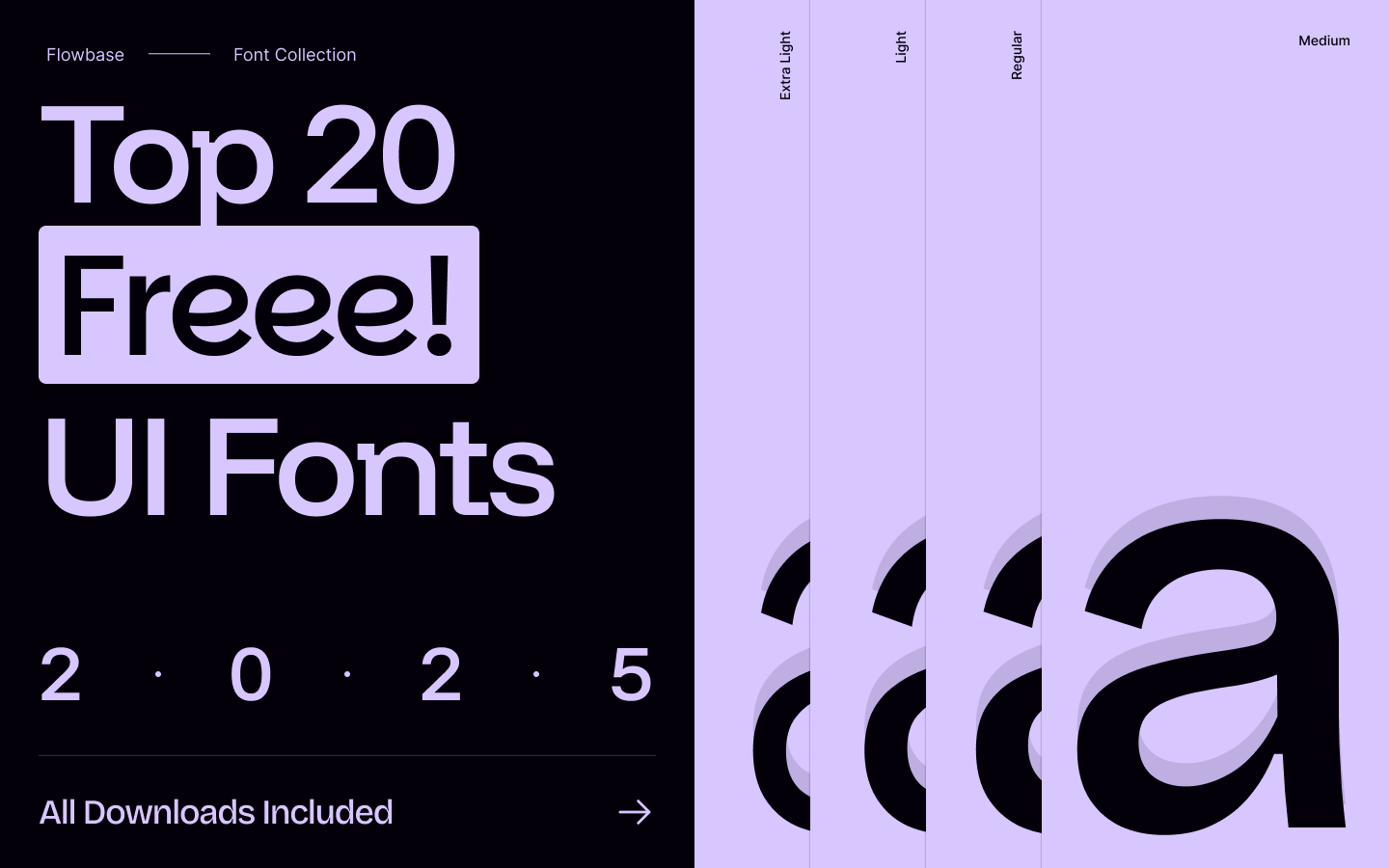
We’ve simplified this for you and have collated our Top 20 Free Fonts for 2025. We’ve handpicked the best fonts so you can create products that are beautiful, professional and visually interesting, but most importantly, perform well.
You loved our last curated list, so we’re back again with the goods for 2025 – enjoy!
For the full details and a preview, keep scrolling – but here they are, in no particular order!
Whether you’re designing your portfolio, a business site or your next brand, these fonts will perform for you across all touchpoints. So, let’s dive in and discover the perfect free fonts for your next project.
Top 20 Free Fonts
Bricolage Grotesque
Designed by Mathieu Triay, Bricolage Grotesque blends historical influences from French and British typefaces. It offers versatility across weight, width, and optical size axes, making it suitable for a range of design projects.